Dieser Artikel bezieht sich auf das Produkt Professional Email (powered by Titan). Wenn Sie ein Professional Email Indiviudal oder Teams nutzen bzw. ein Microsoft 365, gehen Sie bitte auf unsere FAQ Startseite https://www.hosteurope.de/faq/ und wählen Sie dort den richtigen Produktbereich Professional Email oder Microsoft 365 aus. Dort finden Sie die passenden Informationen.
In diesem Artikel finden Sie Informationen wie man ein Professional E-Mail Konto im klassischen Outlook einrichten kann.
Einrichtung klassisches Outlook
Die Einrichtung in Outlook ist sehr simple.
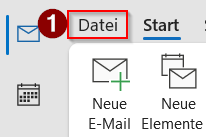
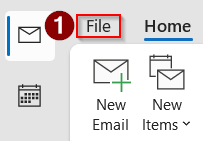
1) Navigieren Sie in Outlook oben links zu Datei
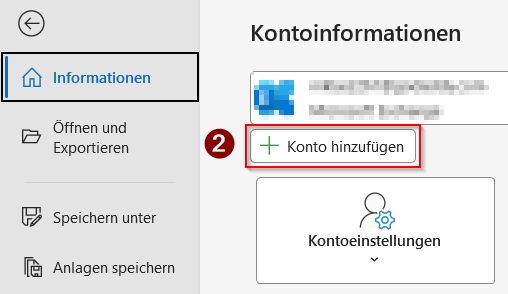
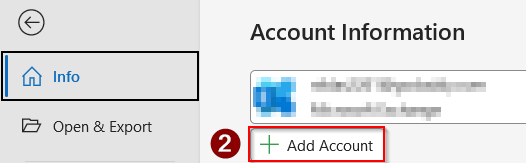
2) Wählen Sie dann + Konto hinzufügen
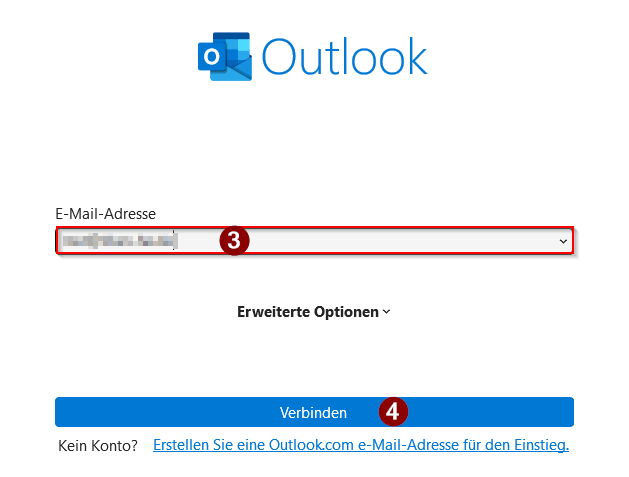
3) Nun geben Sie Ihre E-Mail-Adresse ein
4) Klicken Sie auf Verbinden
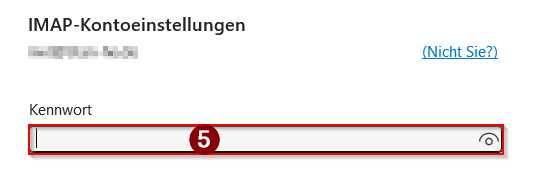
5) Geben Sie nun Ihr E-Mail Passwort ein
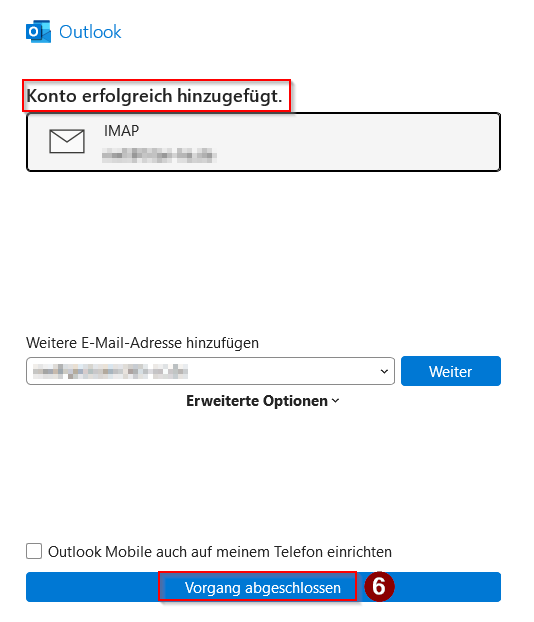
6) Nun ist das Konto als IMAP-Konto erfolgreich hinzugefügt und Sie können den Vorgang abschließen
Falls Sie die Daten manuell eingeben müssen nutzen Sie bitte:
IMAP:
Serveradresse/Hostname: imap.secureserver.net
Port 993
Verbindungssicherheit: SSL/TLS
Authentifizierungsmethode: Passwort, normal
SMTP:
Serveradresse/Hostname: smtpout.secureserver.net
Port 465
Verbindungssicherheit: SSL/TLS
Authentifizierungsmethode: Passwort, normal
English Version:
How can I set up my Professional Email (powered by Titan) in classic Outlook?
This article refers to the Professional Email product (powered by Titan). If you use Professional Email Individual or Teams or Microsoft 365, please go to our FAQ homepage https://www.hosteurope.de/faq/ and select the correct product area, Professional Email or Microsoft 365. There you will find the relevant information.
Setting up classic Outlook
Setting up in Outlook is very simple.
1) In Outlook, navigate to File in the top left corner
2) Then select + Add Account
3) Now enter your email address
4) Click Connect
5) Now enter your email password
6) The account has now been successfully added as an IMAP account and you can complete the process with Done
If you need to enter the details manually, please use the following:
IMAP:
Server address/hostname: imap.secureserver.net
Port: 993
Connection security: SSL/TLS
Authentication method: Password, normal
SMTP:
Server address/hostname: smtpout.secureserver.net
Port: 465
Connection security: SSL/TLS
Authentication method: Password, normal