Dieser Artikel bezieht sich auf das Produkt Professional Email (powered by Titan). Wenn Sie ein Professional Email Indiviudal oder Teams nutzen bzw. ein Microsoft 365, gehen Sie bitte auf unsere FAQ Startseite https://www.hosteurope.de/faq/ und wählen Sie dort den richtigen Produktbereich Professional Email oder Microsoft 365 aus. Dort finden Sie die passenden Informationen.
In diesem Artikel erläutern wir, wie ein E-Mail-Konto gelöscht und ggf. auch wiederhergestellt werden kann.
E-Mail Konto löschen
- Bitte loggen Sie sich in die E-Mail Administration (Erläuterung Login E-Mail-Administration) ein.
- Wählen Sie unter Dashboard die entsprechende E-Mail-Adresse aus und klicken Sie auf Verwalten.
- Im Nachfolgenden wird Ihnen in der Kategorie Verwalten die Kachel Konto löschen angezeigt.
- Sobald Sie diese anklicken, werden Sie mit eine Popup aufgefordert, diese Löschung nochmals zu bestätigen.
Nach der Bestätigung der Löschung wird das E-Mail-Konto entfernt. Eine Wiederherstellung des E-Mail-Kontos ist im Anschluss innerhalb von 30 Tagen möglich.
E-Mail Konto wiederherstellen
- ACHTUNG: Eine Wiederherstellung ist maximal 30 Tage nach der Löschung der E-Mail-Adresse/des E-Mail-Kontos möglich.
- Bitte loggen Sie sich in die E-Mail Administration (Erläuterung Login E-Mail-Administration) ein.
- Wählen Sie unter dem Dashboard den Menüpunkt Konten einrichten aus.
- Hier geben Sie die gleiche E-Mail Adresse an, welche bei dem gelöschten E-Mail-Konto genutzt wurde.
- Der Vor- und Nachname kann von den vorher genutzten Daten abweichen.
- Wenn Sie diese E-Mail-Adresse nun erstellen, bekommen Sie folgendes Hinweis-Fenster:
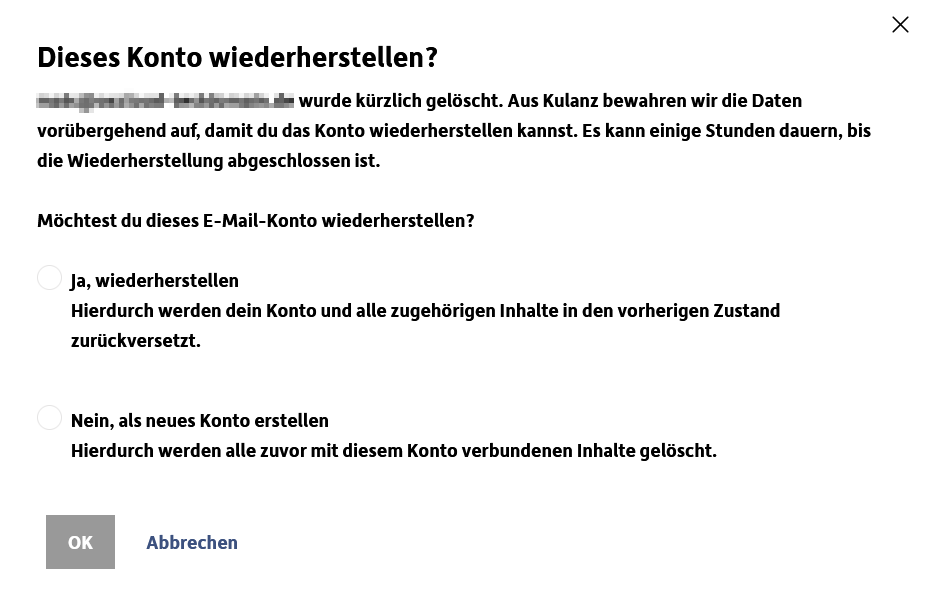
- Wählen Sie bitte Ja, wiederherstellen[...] aus, sodass das E-Mail-Konto wiederhergestellt wird.
- Bitte beachten Sie, dass es bis zu 24h in Anspruch nehmen kann, bis die Wiederherstellung durchgeführt und abgeschlossen wurde.
English Version:
How can I delete or restore a deleted e-mail account?
This article refers to the Professional Email product (powered by Titan). If you use Professional Email Individual or Teams or Microsoft 365, please go to our FAQ homepage https://www.hosteurope.de/faq/ and select the correct product area, Professional Email or Microsoft 365. There you will find the relevant information.
In this article you find information on how to delete and restore an e-mail account.
If you want to restore a email account, please read the following instructions.
Delete email account
- Please log into your E-Mail-Administration (Explanation Login E-Mail-Administration).
- Under Dashboard, select the corresponding account and click Manage.
- In the following, you will see the Delete account tile in the Manage category.
- Once you click on it, you will be prompted with a popup to confirm this deletion again.
After confirming the deletion, the account will be removed. A recovery is still possible for 30 days.
Restore Email Account
- Please note: A restore is possible withing 30 days after the deletion of the email address / email account
- Please log into your E-Mail-Administration (Explanation Login E-Mail-Administration).
- Under the Dashboard, select Set up accounts.
- Here, enter the same email address that was used for the deleted email account.
- The first and last name may differ from the previously used data.
- If you create this e-mail now, you will get the following message window:
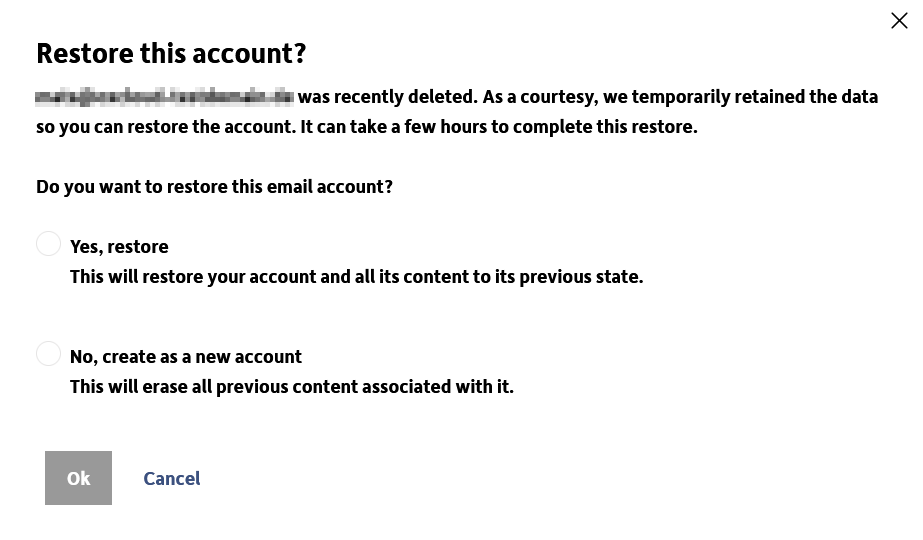
- Please select Yes, restore[...] so that the account will be restored.
- Please note that it may take up to 24 hours for the recovery to be completed.