Dieser Artikel bezieht sich auf das Produkt Professional Email (powered by Titan). Wenn Sie ein Professional Email Indiviudal oder Teams nutzen bzw. ein Microsoft 365, gehen Sie bitte auf unsere FAQ Startseite https://www.hosteurope.de/faq/ und wählen Sie dort den richtigen Produktbereich Professional Email oder Microsoft 365 aus. Dort finden Sie die passenden Informationen.
In diesem Artikel finden Sie Informationen wie man ein Professional E-Mail Konto in Thunderbird einrichten kann.
Einrichtung Thunderbird
Die Einrichtung von Thunderbird ist sehr simple.
Navigieren Sie zu den Einstellungen unten links und klicken auf Neues Konto dann auf E-Mail-Konto.
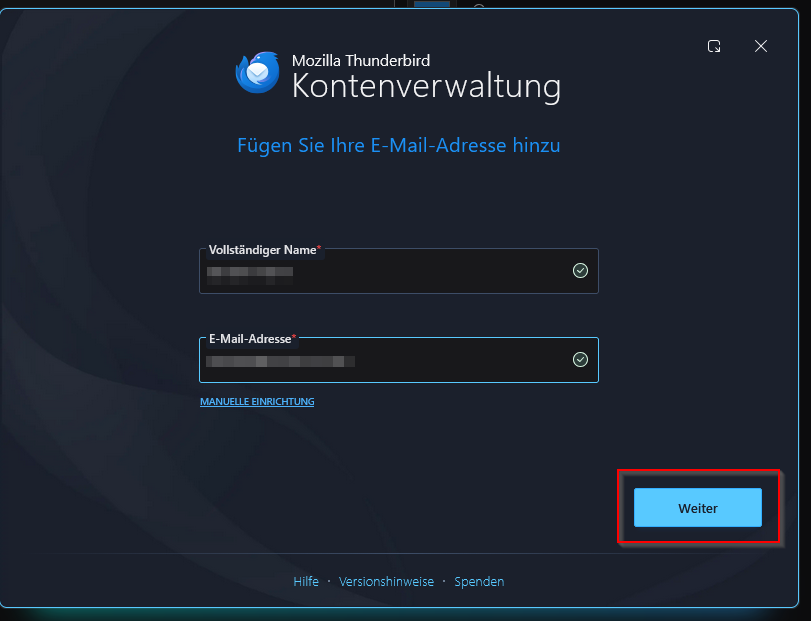
Sie werden aufgefordert Ihren Namen und die E-Mailadresse anzugeben:
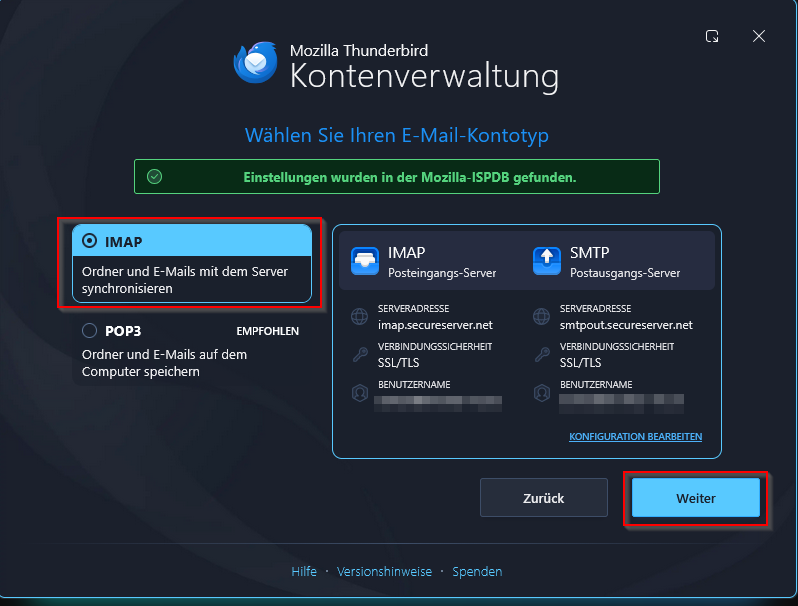
Im nächsten Schritt müssen Sie das E-Mailprotokoll auswählen. Wir empfehlen IMAP:
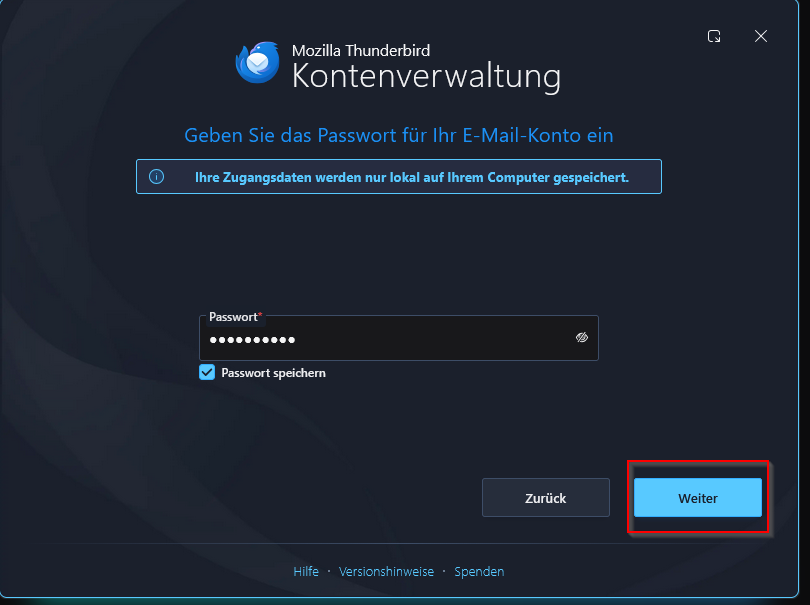
Nach dem Klick auf "Weiter" nur noch das Passwort angeben:
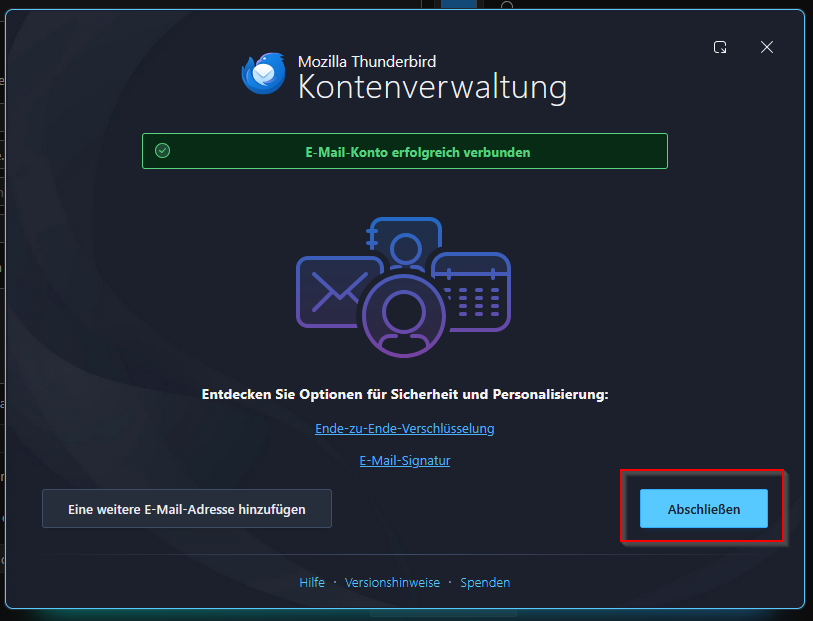
Nun klicken Sie auf "Weiter" und schließen die Konfiguration ab:
Falls Sie die Daten manuell eingeben müssen nutzen Sie bitte:
IMAP:
Serveradresse/Hostname: imap.secureserver.net
Port 993
Verbindungssicherheit: SSL/TLS
Authentifizierungsmethode: Passwort, normal
SMTP:
Serveradresse/Hostname: smtpout.secureserver.net
Port 465
Verbindungssicherheit: SSL/TLS
Authentifizierungsmethode: Passwort, normal
English Version:
This article refers to the Professional Email product (powered by Titan). If you use Professional Email Individual or Teams or Microsoft 365, please go to our FAQ homepage https://www.hosteurope.de/faq/ and select the correct product area, Professional Email or Microsoft 365. There you will find the relevant information.
Thunderbird Setup
Die Einrichtung von Thunderbird ist sehr simple.
Navigate to the settings in the bottom left and click on “New Account”, then select “Email Account.”
You will be prompted to enter your name and email address:
In the next step, you need to choose the email protocol. We recommend IMAP.
After clicking “Continue”, simply enter your password:
Then click “Continue” and complete the configuration.
If you need to enter the details manually, please use the following:
IMAP:
Server address/hostname: imap.secureserver.net
Port: 993
Connection security: SSL/TLS
Authentication method: Password, normal
SMTP:
Server address/hostname: smtpout.secureserver.net
Port: 465
Connection security: SSL/TLS
Authentication method: Password, normal