Dieser Artikel richtet sich an Kunden mit einem cPanel Hosting Produkt.
Hinweis: Die meisten cPanel Pakete beinhalte bereits kostenfreies AutoSSL und Sie können darauf umstellen, sofern Sie derzeit noch ein manuell eingebundenes SSL-Zertifikat verwenden. Informationen zu Auto SSL erhalten Sie in unseren FAQ: Wie funktioniert AUTO SSL bei meinem cPanel Produkt?
Manueller Upload eines SSL-Zertifikates
Loggen Sie sich dazu bitte in die cPanel Administration ein. (Erläuterung Login)
Anschließend klicken Sie auf der cPanel-Startseite im Abschnitt Sicherheit auf "SSL/TLS".

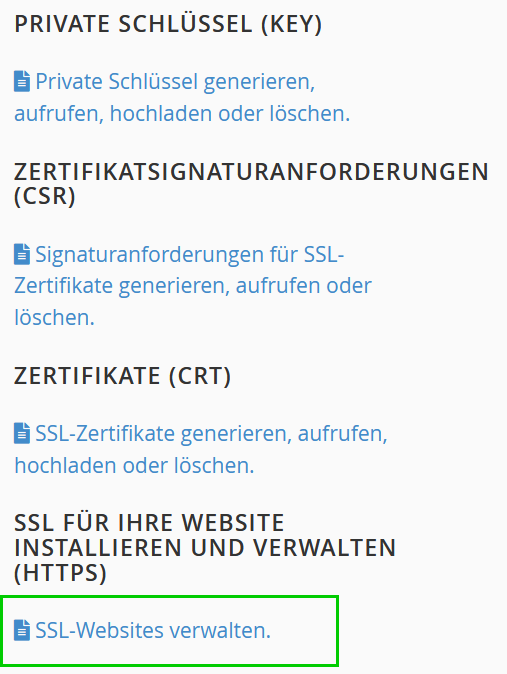
Hier finden Sie unter SSL für Ihre Website installieren und verwalten (HTTPS) den Punkt "SSL-Websites verwalten".
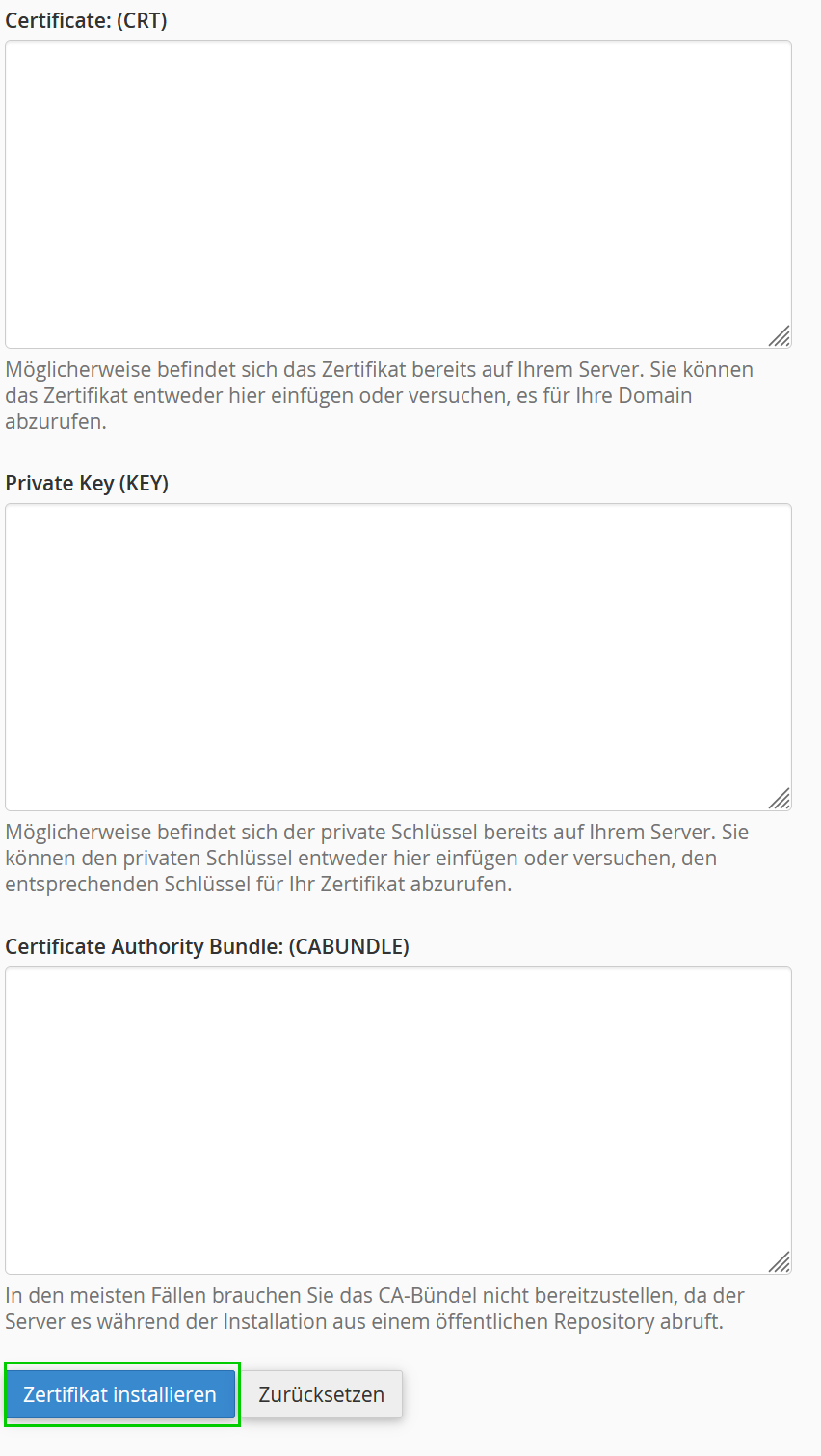
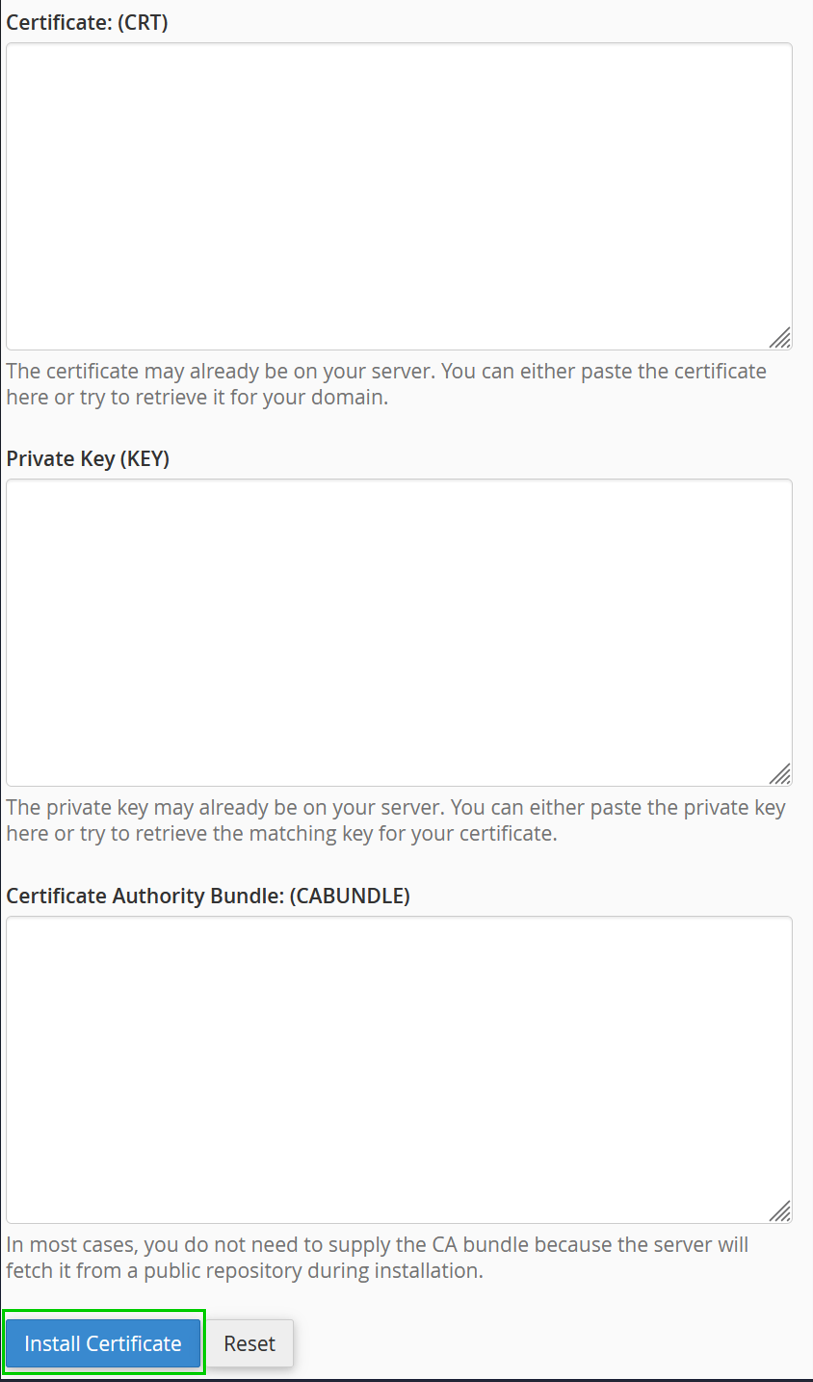
In dem Abschnitt "SSL-Website installieren" haben Sie die Möglichkeit die Zertifikatsdateien hochzuladen. Hier sehen Sie dann drei leere Felder:
Der Inhalt der Dateien wird ohne Leerzeilen eingefügt. Hier sehen Sie auch ein Beispiel:
-----BEGIN CERTIFICATE-----
[Inhalt der CRT Datei]
-----END CERTIFICATE-----
-----BEGIN Private Key-----
[Inhalt des Keys]
-----END Private Key----
-----BEGIN CERTIFICATE-----
[Inhalt des (CA-Bundle) intermediate certificates]
-----END CERTIFICATE-----
Wichtig: Achten Sie darauf, dass zwischen den einzelnen Zertifikaten keine Leerzeilen stehen und die Reihenfolge eingehalten wird.
Nun klicken Sie unten auf "Zertifikat installieren", damit der Installationsprozess ausgeführt wird.
ACHTUNG: Sollte der Private Key wie folgt beginnen:
-----BEGIN RSA PRIVATE KEY-----
So entfernen Sie den Zusatz "RSA":
-----BEGIN PRIVATE KEY-----
Nach erfolgreicher Installation wird das Zertifikat unmittelbar für die ausgewählte Domain verwendet. Es kann anschließend einige Minuten dauern, bis die Änderung vollständig wirksam ist.
English version:
This article is aimed at customers with a cPanel hosting product.
Note: Most cPanel packages already include free AutoSSL, and you can switch to it if you are currently using a manually installed certificate. For information about Auto SSL, please see our FAQ: How does AUTO SSL work with my cPanel product?
Manual upload of an SSL certificate
To do this, please log into the cPanel administration. (Explanation of login)
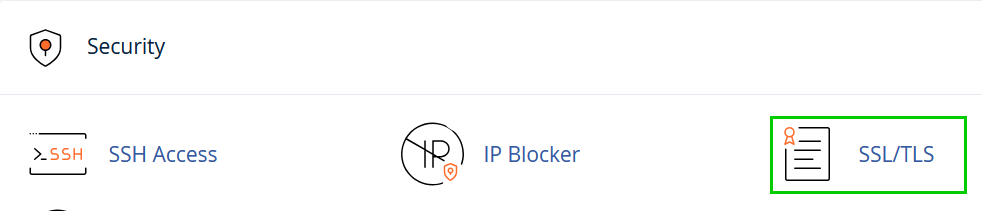
Then click on "SSL/TLS" in the Security section on the cPanel start page.
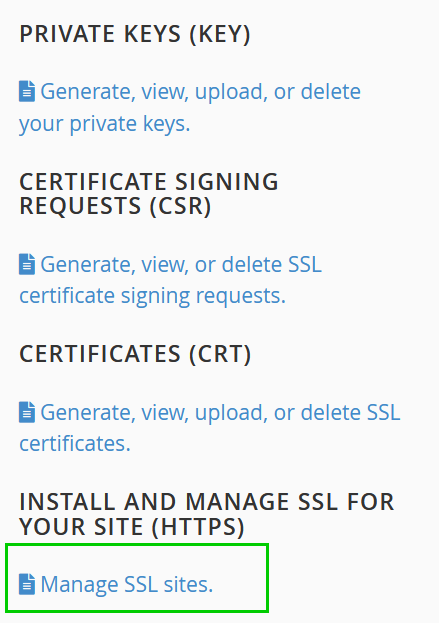
Under Install and Manage SSL for your site (HTTPS) you will find the item "Manage SSL sites".
In the "Install an SSL Website" section you have the option to upload the certificate files. You will see three empty fields:
- Certificate: (CRT)
- Private Key (KEY)
- Certificate Authority Bundle: (CABUNDLE)
The content of the files is inserted without blank lines. Here you can also see an example:
1. Certificate: (CRT)
-----BEGIN CERTIFICATE-----
[Content of the CRT file]
-----END CERTIFICATE-----
2. Private Key (KEY)
-----BEGIN PRIVATE KEY-----
[Content of the Key]
-----END PRIVATE KEY-----
3. Certificate Authority Bundle: (CABUNDLE)
-----BEGIN CERTIFICATE-----
[Content of the (CA-Bundle) intermediate certificate]
-----END CERTIFICATE-----
Important: Make sure that there are no blank lines between the individual certificates and that the correct order is maintained.
Finally click on "Install Certificate" below. If it has been installed correctly, you will receive a confirmation on your screen.
ATTENTION: If your private key begins as follows:
-----BEGIN RSA PRIVATE KEY-----
please remove the term "RSA" so that it reads:
-----BEGIN PRIVATE KEY-----
After successful installation, the certificate will be used immediately for the selected domain. Please note that it may take a few minutes for the change to take full effect.